 Discord Bots
1 - Installation
Missing a bot to use? Follow these steps below:
Head over to https://discord.com/developers/applications and create a new application.
Or you can use an existing however, you will need to reset the token to that application.
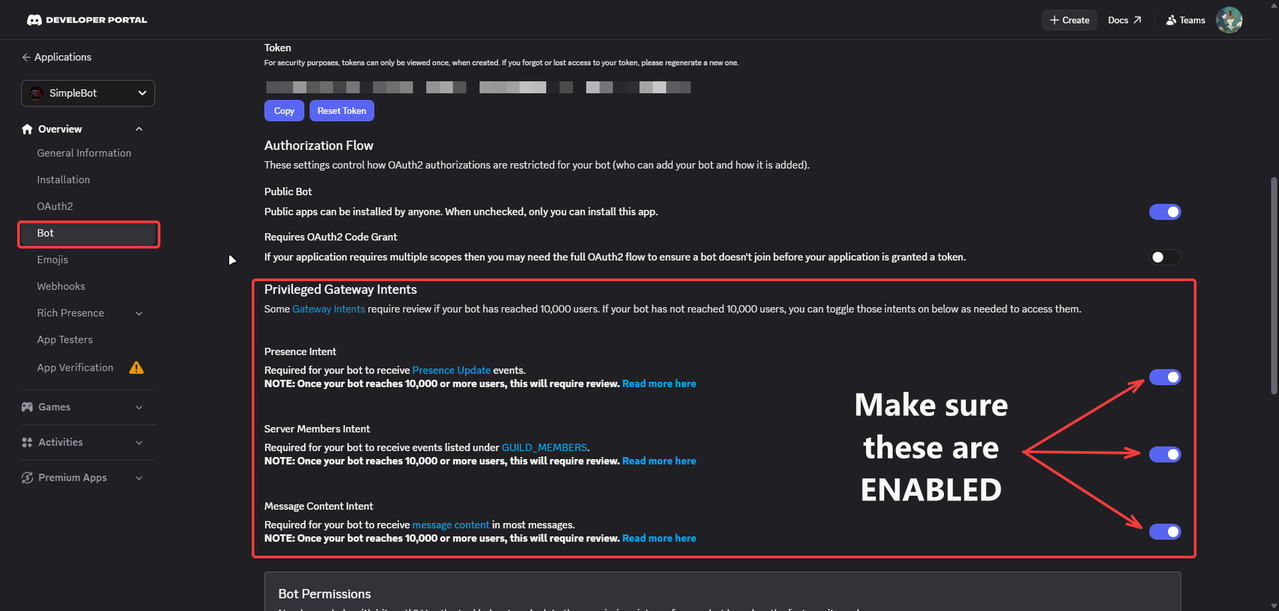
Copy the token created for the bot.
This can be found in the BOT tab in the application's sidebar.
Click New Bot on the top right to create a bot.
Click to reset the bot token and copy the new one.
Navigate to the config.json and input it into the
BOT-TOKEN-HEREslot.Navigate back to the Discord Developer Portal and reopen the bot you just made.
Look for the Privileged Gateway Intents and make sure they are all enabled.
TrapBot comes with its own .exe for running the bot.
Download TrapBot from https://simpledevelopments.org/.
Extract the resource utilizing WinRAR or 7-Zip.
Drag the folder
TrapBotto your desktop or to any location you want the bot's folder to be.Head over to https://license.simpledevelopments.org/ and create a new license key for TrapBot
Open the folder, then open Config.json.
Configure the config.json however you see fit; however, keep in mind the required lines:
LICENSE-KEY
BOT_TOKEN
CHANNEL_ID
LOG_CHANNEL
After doing so, head back into the folder and double-click
START.BATto start the bot.You should now see the bot sending the warning container message to the channel of your choice.
Having trouble installing? Join our Discord, and we can assist you!